Set up your computer and accessing Draco
Please complete all steps below before the first day of the Viromics module. This will make sure that you can connect to Draco, the high-performance computing (HPC) cluster at the University of Jena, when the course begins.
You will need:
- your laptop;
- your URZ username and password;
- an internet connection.
If you have trouble with any of these steps, contact the course instructors before the course starts so that we can help you troubleshoot the problem.
0. Connect to Eduroam (when in university buildings)
If you haven’t already, use these instructions to connect your laptop to Eduroam.
1. Install and connect to University VPN
Install a VPN following these instructions. Log in using your URZ credentials and make sure that you can successfully connect to the VPN.
Important: You need to be connected to the University VPN when accessing Draco from outside the University network.
2. Install VS Code
Download and install Visual Studio Code for your operating system.
3. Install the Remote SSH - extension
-
Open VS Code and select the Extensions panel.
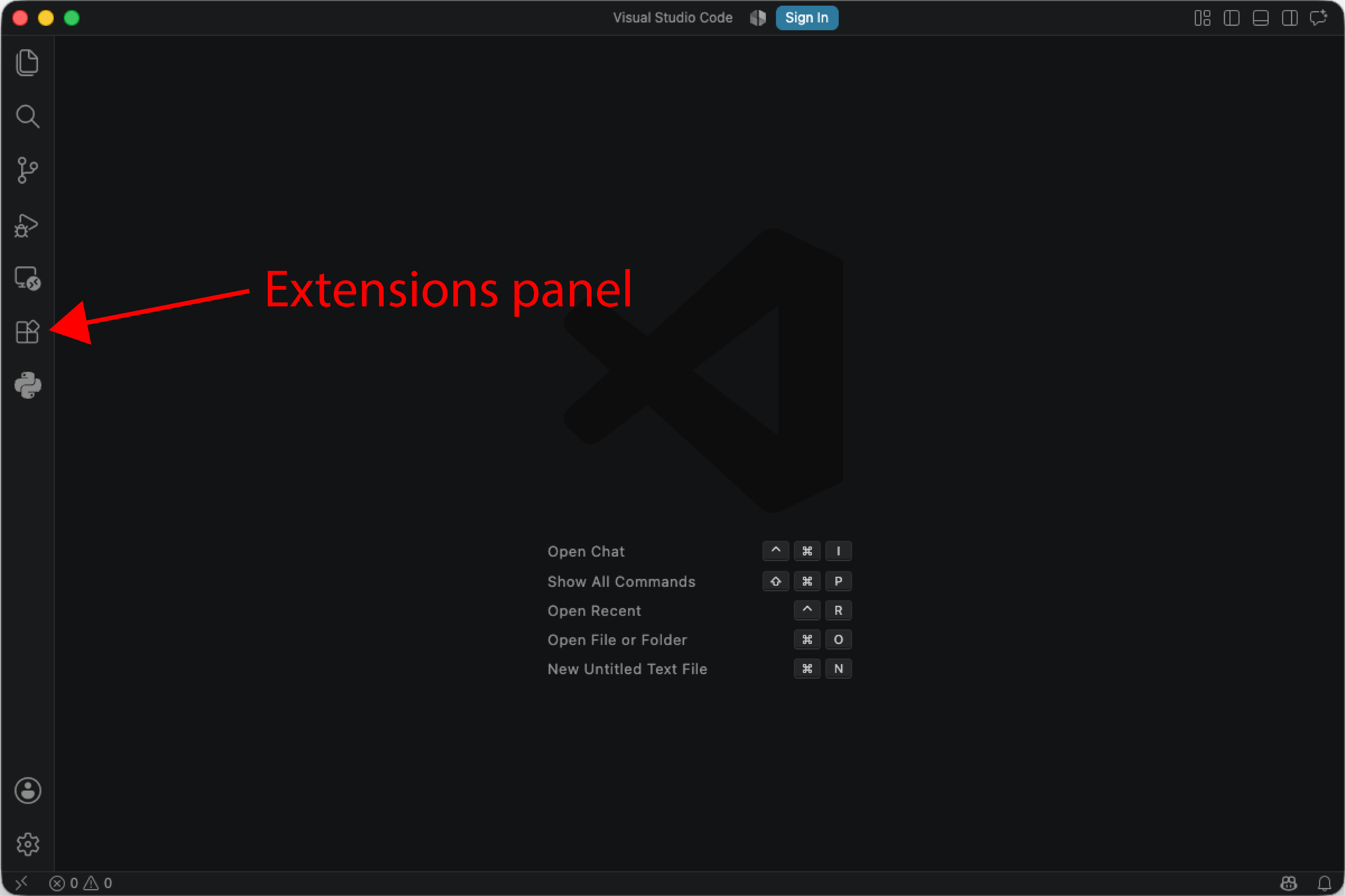
-
Search for Remote - SSH, published by Microsoft, and install it:
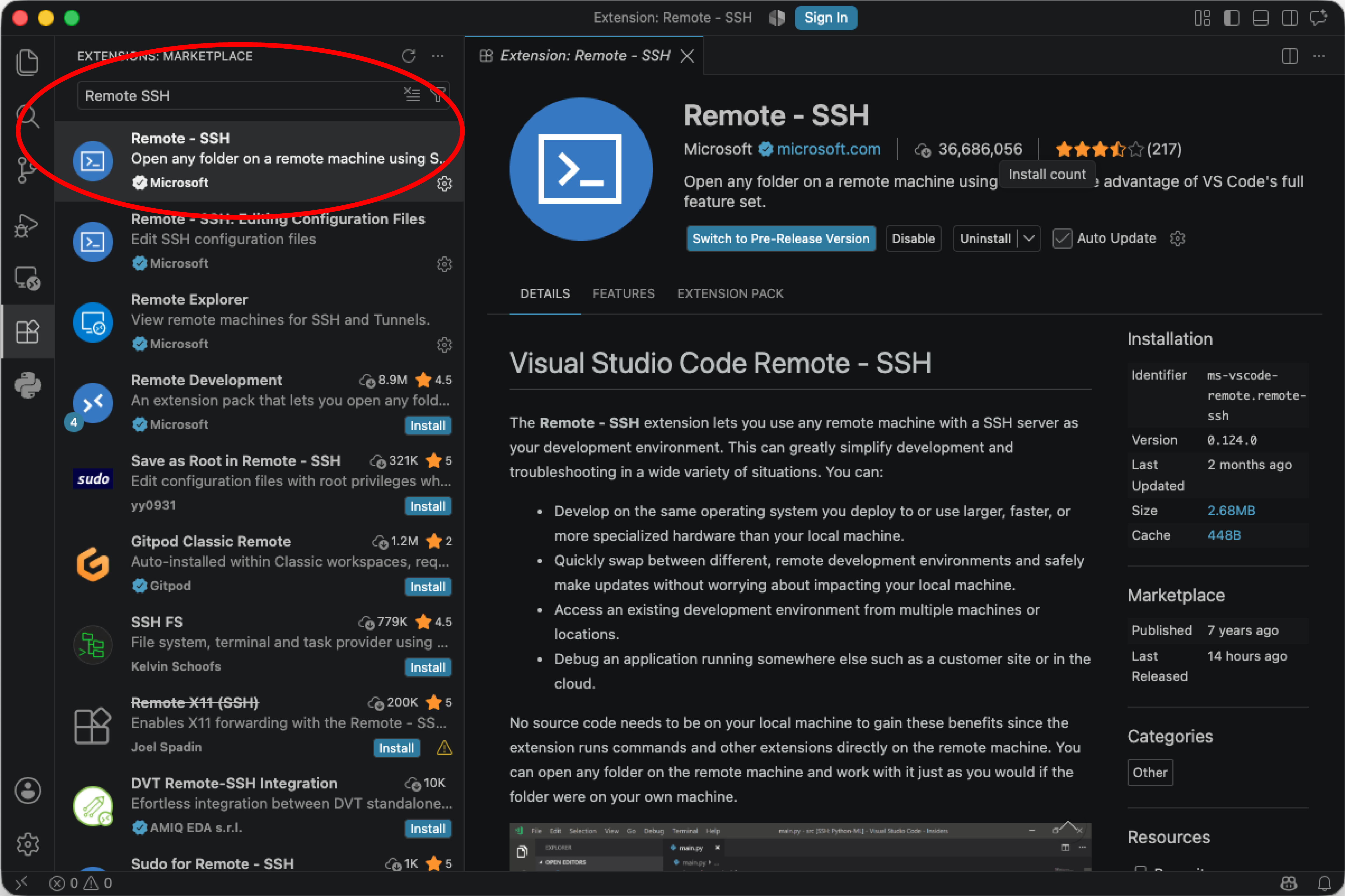
You will use this extension throughout the course to work with files and run commands on Draco.
4. Connect to Draco
Important: Make sure that your University VPN is connected before continuing.
-
Open VS Code
-
Open the Command Palette in VS Code by pressing command+shift+p on macOS or ctrl+shift+p on Windows or Linux.
-
Select Remote-SSH: Connect to Host…
-
Alternatively, you can press the button in the lower left corner:
-
Login using your FSU id and Draco host (login1.draco.uni-jena.de or login2.draco-uni-jena.de) and press enter:
-
Enter your URZ password when prompted.
If the connection is succesful, VS Code will show that you are connected to a remote host in the lower left corner. In the picture below, it is login2.draco.uni-jena.de:
5. Check that you can access Draco.
Open a terminal in VS Code using Terminal -> new window or open the window in the lower right corner.
Type hostname and press enter.
This should return the hostname of the Draco login node to which you are connected (either ‘login1.cluster’ or login2.cluster’).
Then run: pwd. This should show your home directory on Draco.
That’s it!
You can now close VS Code. You do not need to learn any Bash commands before the course. We will introduce the terminal and the commands you need during the course.